Modern Combat 5 PC Controller Support: संपूर्ण गाइड और समाधान 🎯
PC गेमिंग के लिए Modern Combat 5 में controller support की पूरी जानकारी
Modern Combat 5 में खोजें 🔍
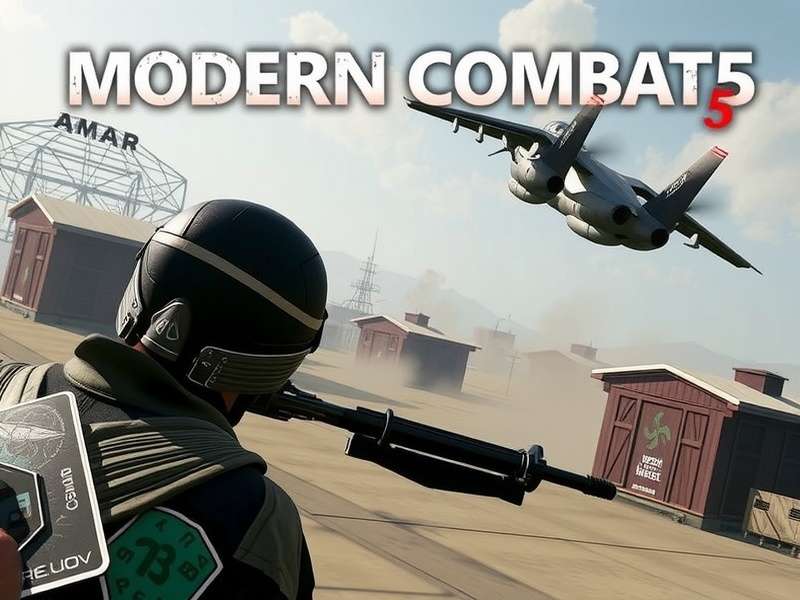
Modern Combat 5 PC Controller Support: क्यों महत्वपूर्ण है? 💡
Modern Combat 5: Blackout एक लोकप्रिय FPS गेम है जो mobile devices के साथ-साथ PC पर भी उपलब्ध है। PC gamers के लिए controller support एक crucial aspect है जो gaming experience को significantly improve करता है।
Controller Support के फायदे 🚀
PC पर controller का उपयोग करने के multiple advantages हैं:
• Better Ergonomics - Long gaming sessions के लिए अधिक आरामदायक
• Precise Movement - Analog sticks के साथ smoother character movement
• Familiar Layout - Console gamers के लिए familiar control scheme
• Reduced Fatigue - Keyboard और mouse की तुलना में कम physical strain
Supported Controllers: कौन से काम करते हैं? 🎮
Official Controllers
Modern Combat 5 PC version निम्नलिखित official controllers को support करता है:
Xbox Controllers
• Xbox One Controller - Full native support
• Xbox Series X/S Controller - Plug and play compatibility
• Xbox 360 Controller - Windows recognition required
PlayStation Controllers
• DualShock 4 (PS4) - Additional software may be needed
• DualSense (PS5) - Modern compatibility
Third-Party Controllers
• Logitech Gamepads - XInput support वाले models
• Razer Controllers - Gaming-optimized devices
• Generic USB Controllers - DirectInput compatibility
Complete Setup Guide: Step-by-Step Instructions 📋
Xbox Controller Setup
Xbox controllers के लिए setup process सबसे simple है:
1. Controller को USB cable के through connect करें
2. Windows automatic drivers install करेगा
3. Modern Combat 5 launch करें
4. Settings में Controller Options select करें
5. Button mapping verify करें
PlayStation Controller Setup
PS controllers के लिए additional steps required हैं:
1. DS4Windows software download और install करें
2. Controller को USB या Bluetooth के through connect करें
3. DS4Windows में controller recognize करें
4. Modern Combat 5 launch करें
5. Controller input test करें
Wireless Connection Setup
Wireless controllers के लिए Bluetooth setup:
1. PC के Bluetooth settings open करें
2. Controller को pairing mode में लाएं
3. Device select करके pair करें
4. Connection stability check करें
5. Game में controller response verify करें
User Interaction Zone ✨
Common Issues और Solutions 🔧
Controller Not Detected
यदि game controller को detect नहीं कर रहा है:
• USB port change करके check करें
• Device Manager में driver update करें
• Game restart करें
• PC restart करें
Input Lag Issues
Controller input lag के solutions:
• Wireless interference reduce करें
• USB 3.0 ports का उपयोग करें
• Background applications close करें
• Game graphics settings optimize करें
Button Mapping Problems
Incorrect button mapping को fix करने के लिए:
• Game control settings reset करें
• Controller calibration tool का उपयोग करें
• Third-party mapping software try करें
• Controller firmware update करें
Advanced Tips और Optimization 🚀
Performance Optimization
Controller performance improve करने के लिए:
• Dead Zone Adjustment - Stick sensitivity optimize करें
• Response Curve - Input response customize करें
• Vibration Settings - Haptic feedback adjust करें
Custom Configurations
Advanced users के लिए custom setups:
• Steam Input Configuration - Extensive customization options
• reWASD Software - Advanced remapping capabilities
• Xpadder Alternative - Legacy controller support
अपना अनुभव साझा करें 💬